
Sprung zum Abschnitt


Sie können die gesuchte Antwort nicht finden? Keine Sorge, wir sind hier, um zu helfen!
Kontakt zum SupportTSL | V28 and newer - hsbTimberPercentage - Walls
This document will show you how to calculating the wood percentage / TimberPercentage with the HSB_E-TimberPercentage and HSB_E-TimberPercentageArea tsl for determining the RC value of elements for the BENG - NTA 8800.
BLOCK_INFO_START
To use this new tsl, 2 tsls need to be present in the Drawing. HSB_E-TimberPercentage and HSB_E-TimberPercentageArea.
Where can I find this tsls?
C:\Program Files\hsbcad\hsbDesign25\Content\Dutch\TSL\hsb_E-TimberPercentage.mcr
C:\Program Files\hsbcad\hsbDesign25\Content\Dutch\TSL\hsb_E-TimberPercentageArea.mcr
NOTE: This article is for the latest versions of the tsl. This means HSB_E-TimberPercentageArea version 4.0 and newer. This new version is available from hsbDesign version 28.
BLOCK__END
The HSB_E-TimberPercentage TSL analyses the element and inserts the HSB_E-TimberPercentageArea tsl to visualize the outline around zone 0 and takes the area of all beams within the area of the automatically placed PLine.
Beams narrower than half the element thickness are not included in the calculation.
How to use the TSL
When executing the tsl an element must be selected.
If nothing is entered in the properties Profile Name(s) then the outline of zone 0 of the element will be taken.
This means the outline where the openings are taken from.
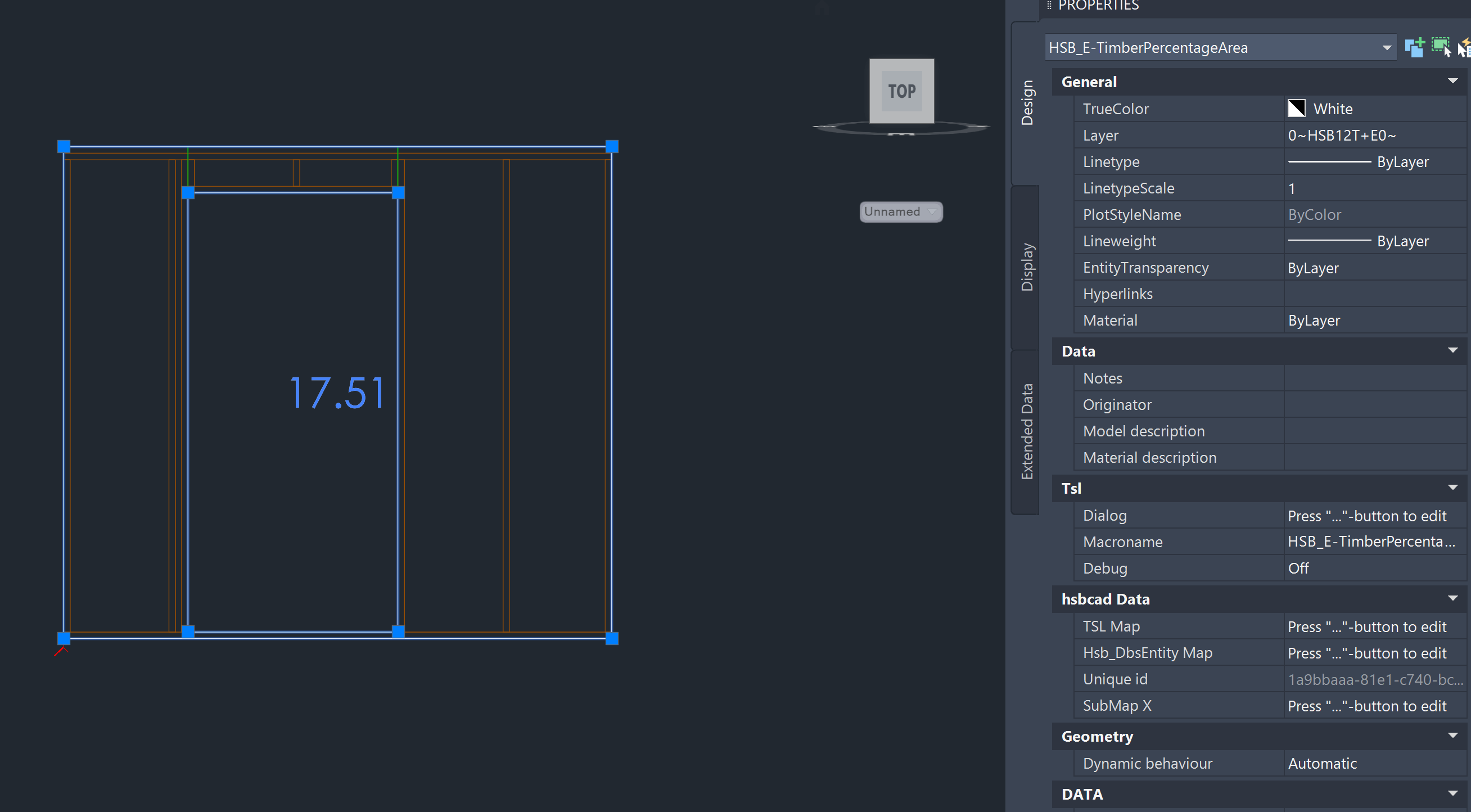
See also the example below where the after inserting the HSB_E-TimberPercentage tsl, the HSB_E-TimberPercentageArea is placed on the element, the opening and outline are visualized with the selected line. In the middle of the element the TimberPercentage is shown, in this case 17.51.
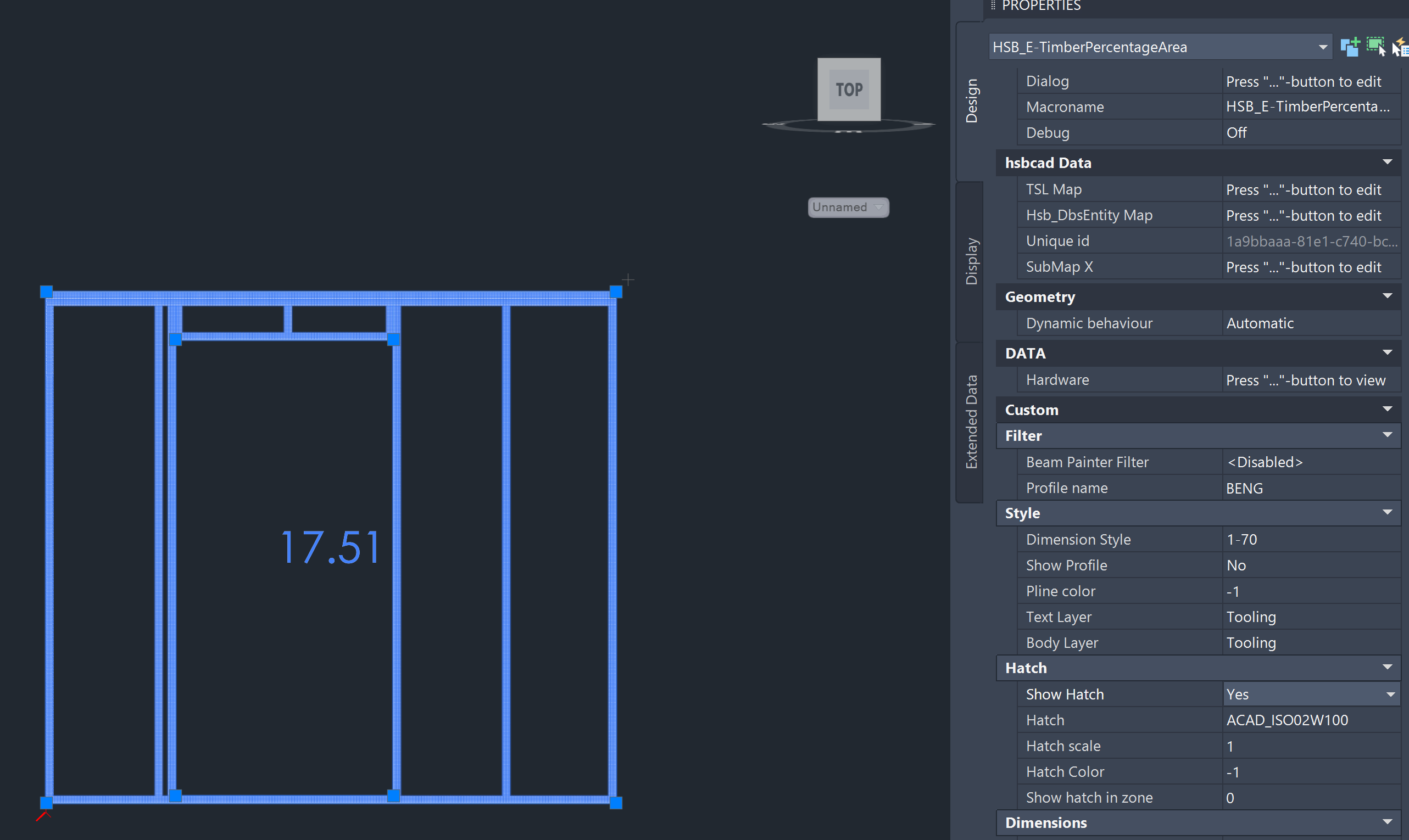
It is also possible to visualize the area with an hatch. In the properties of the tsl you can set "Show Hatch" to true.
Manually change the outline
Use the Grip Points
The fastest way to tweak an outline or opening is by using the blue grip points. Simply click and drag these points to snap the geometry exactly where it needs to be. This is particularly useful for quick fixes when you've manually altered element's after generation.
Add or Subtract Areas
When a simple stretch won't cut it, you can "carve" your outline using Polylines (PLines).
- Step 1: Draw a new closed PLine (rectangle) representing the area you want to remove.
- Step 2: Right-click the HSB_E-TimberPercentageArea TSL.
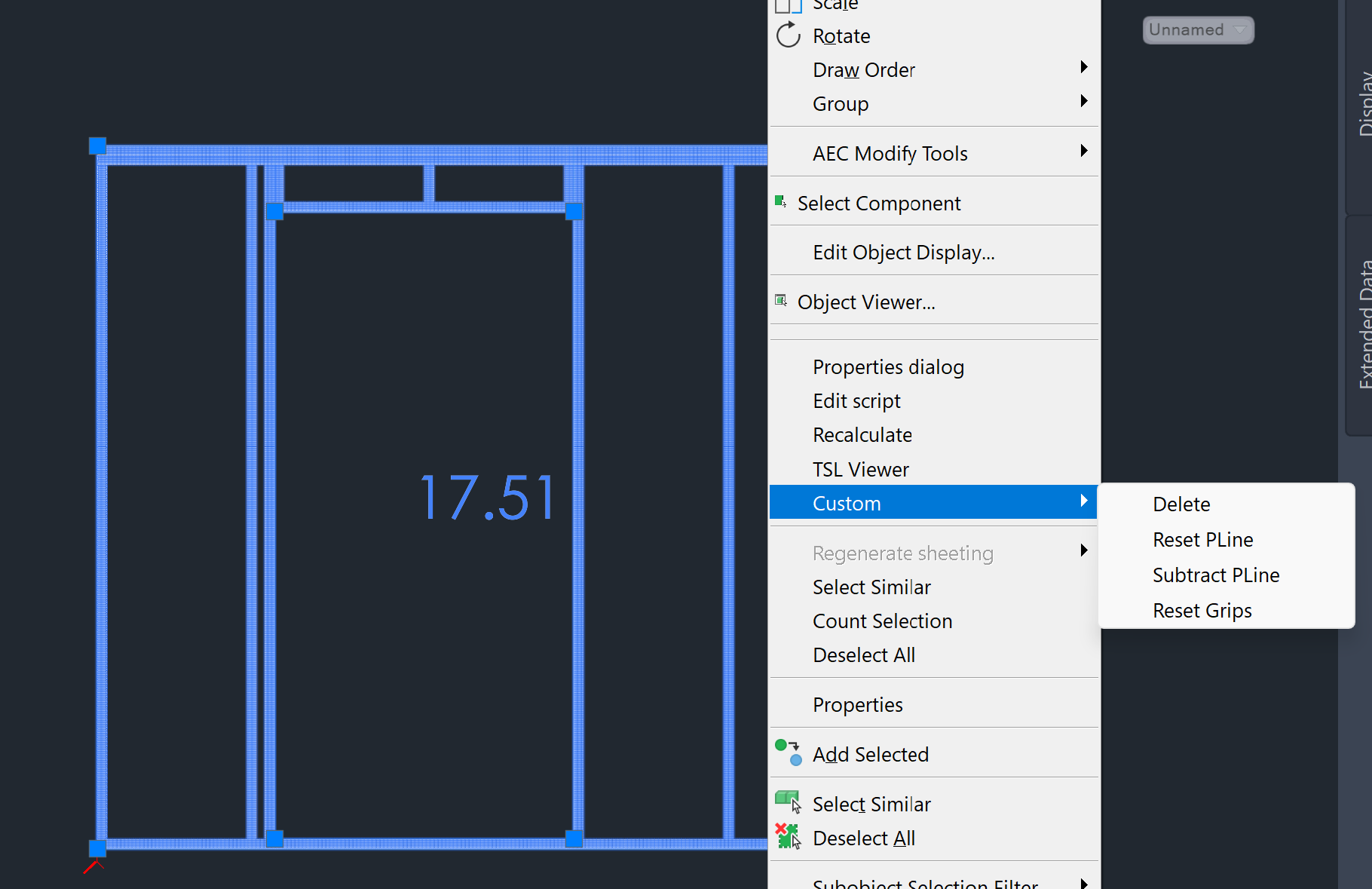
- Step 3: Use the context menu and select substract PLine to substract the new area from the original outline.
Other right mouse context menu actions on the HSB_E-TimberPercentageArea tsl are:
- Delete (Will delete the tsl instance completely)
- Reset PLine (Will undo the manual Grip Point changes)
- Reset Grips (Will undo the manual Grip Point changes)
Outline based on details
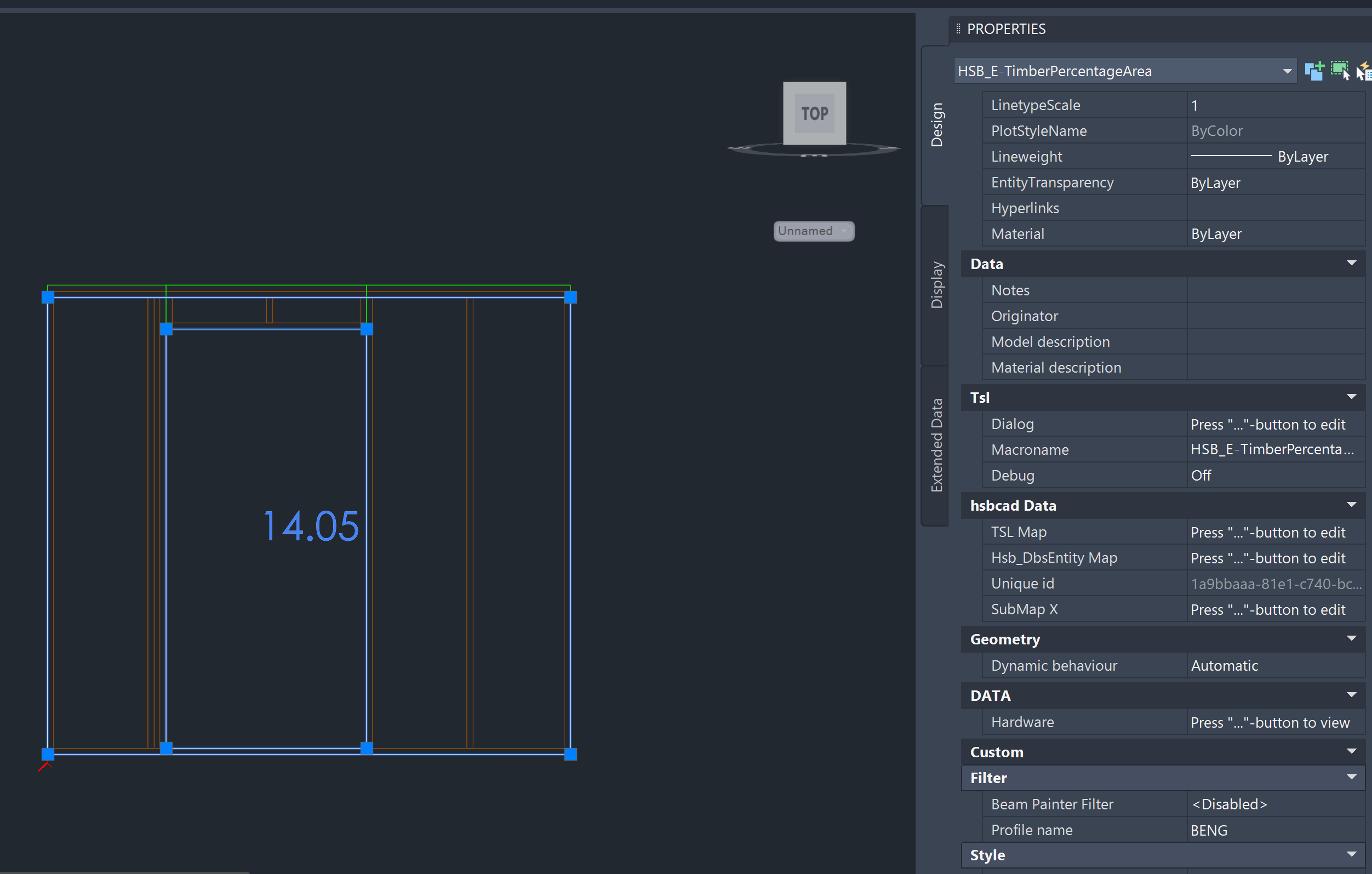
By placing a “cut” in the details you can create a Profile/outline that you can pick up with the TSL.
In this example, we created the Profile with the cut name BENG and entered it in the "Profile Name" property. As you can see this profile has a lower stop at the top of the element which results in a different timberpercentage area value.
The example above is due to an adjustment in the details. These details were created with the WallDetailBuilder as shown below. A Cut has been placed with the name _BENG. This Cut is therefore the end of the area that will be calculated for the wood percentage.
BLOCK_ALERT_START
NOTE:
The Profile is created by the cut with _ in front of the name.
The _ with name is converted into a Profile name by the generator.
This is picked up by the HSB_E-TimberPercentage tsl.
BLOCK__END


Layout
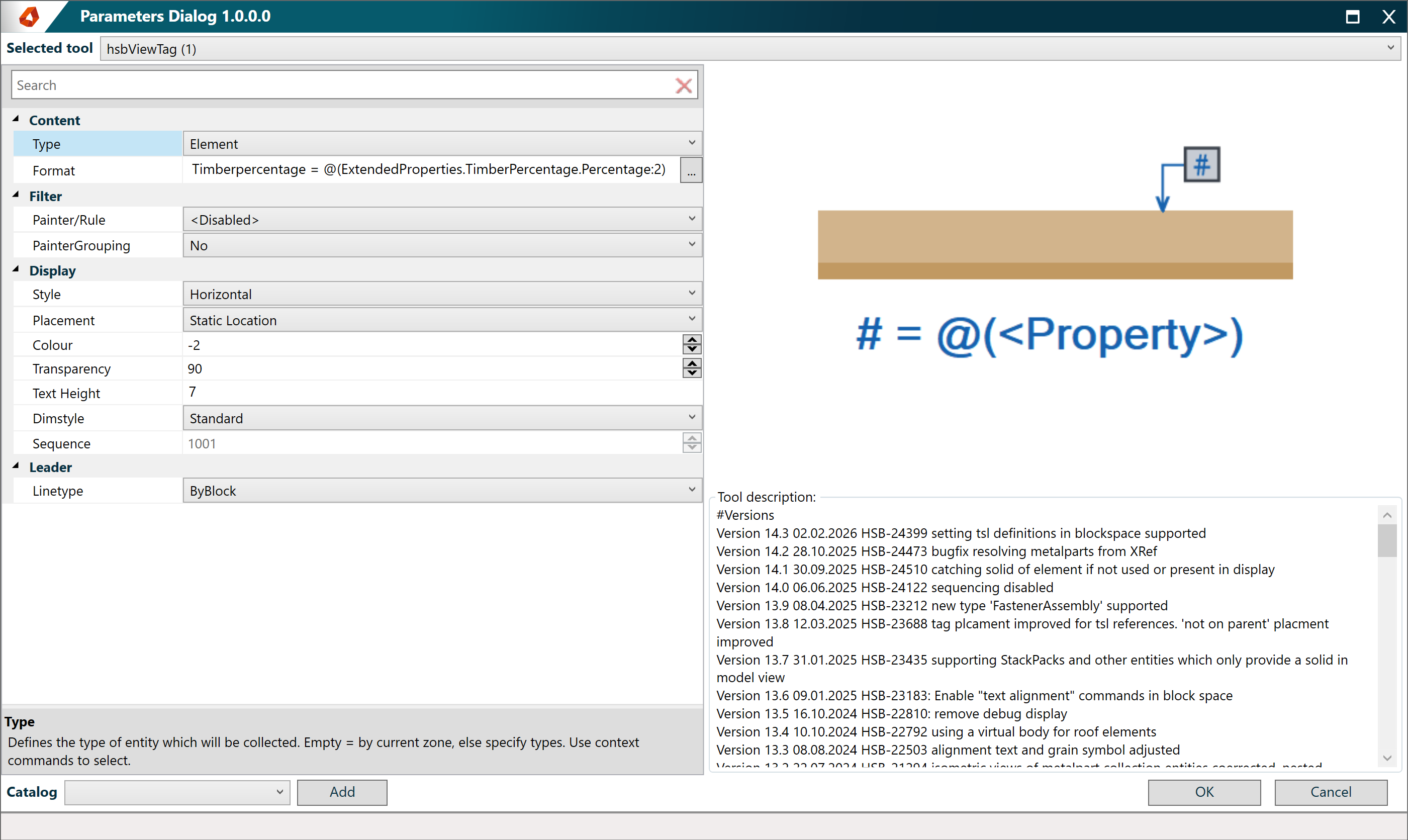
In a layout you can indicate the TimberPercentage by applying the hsbViewTag tsl with these properties seen below (as an example)
BLOCK_INFO_START
The hsb_E-TimberPercentage TSL transmits data to the element, retrievable through the following formatting:
@(ExtendedProperties.TimberPercentage.Percentage)
@(ExtendedProperties.TimberPercentage.Area)
@(ExtendedProperties.TimberPercentage.AreaBrutto)
@(ExtendedProperties.TimberPercentage.AreaWood)
@(ExtendedProperties.TimberPercentage.Name)
BLOCK__END
