Jump to section


Sie können die gesuchte Antwort nicht finden? Keine Sorge, wir sind hier, um zu helfen!
Kontakt zum SupportVersion 30 of hsbDesign for Revit®
New and improved in hsbDesign 30 for Revit®
V30 tightens the path from design to the shop floor. Accurate model and CAD data now moves cleanly between hsbDesign, hsbMake, hsbView and hsbLoad, framing rules and configuration carry across ACA and Revit, and permit-ready output comes straight from the model. The result is less manual rework and a faster, more reliable handover from the designer to production.
Timber Percentage
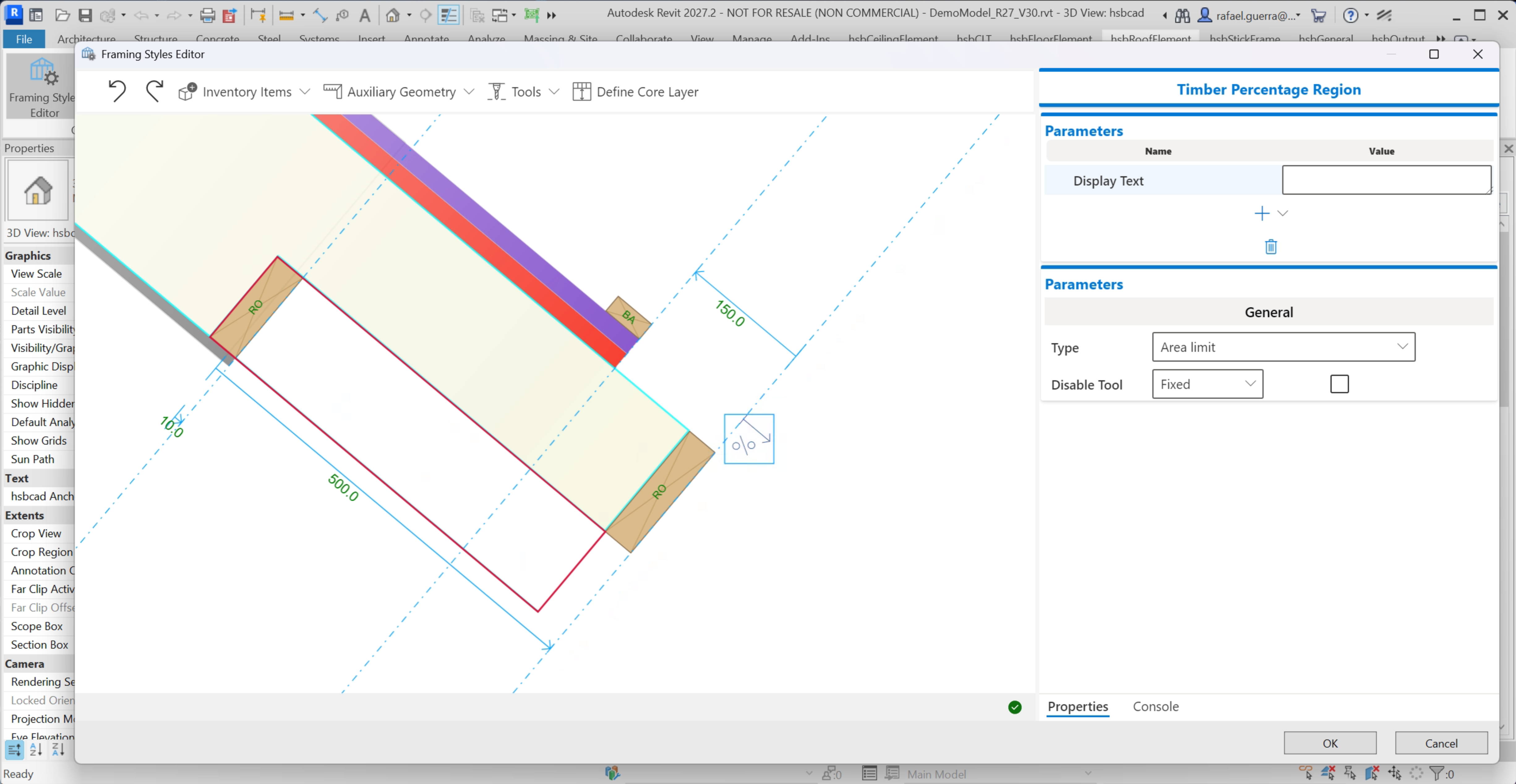
The timber-percentage figures required for building-permit approval no longer need to be worked out by hand. Define and visualize the calculation area on walls and roofs, adjust it as needed, and see the area and percentage calculated automatically and placed on your shop drawings, ready for submission. Fully supported for both the Dutch and UK markets.
Inject CAD Model Data Into Revit Elements
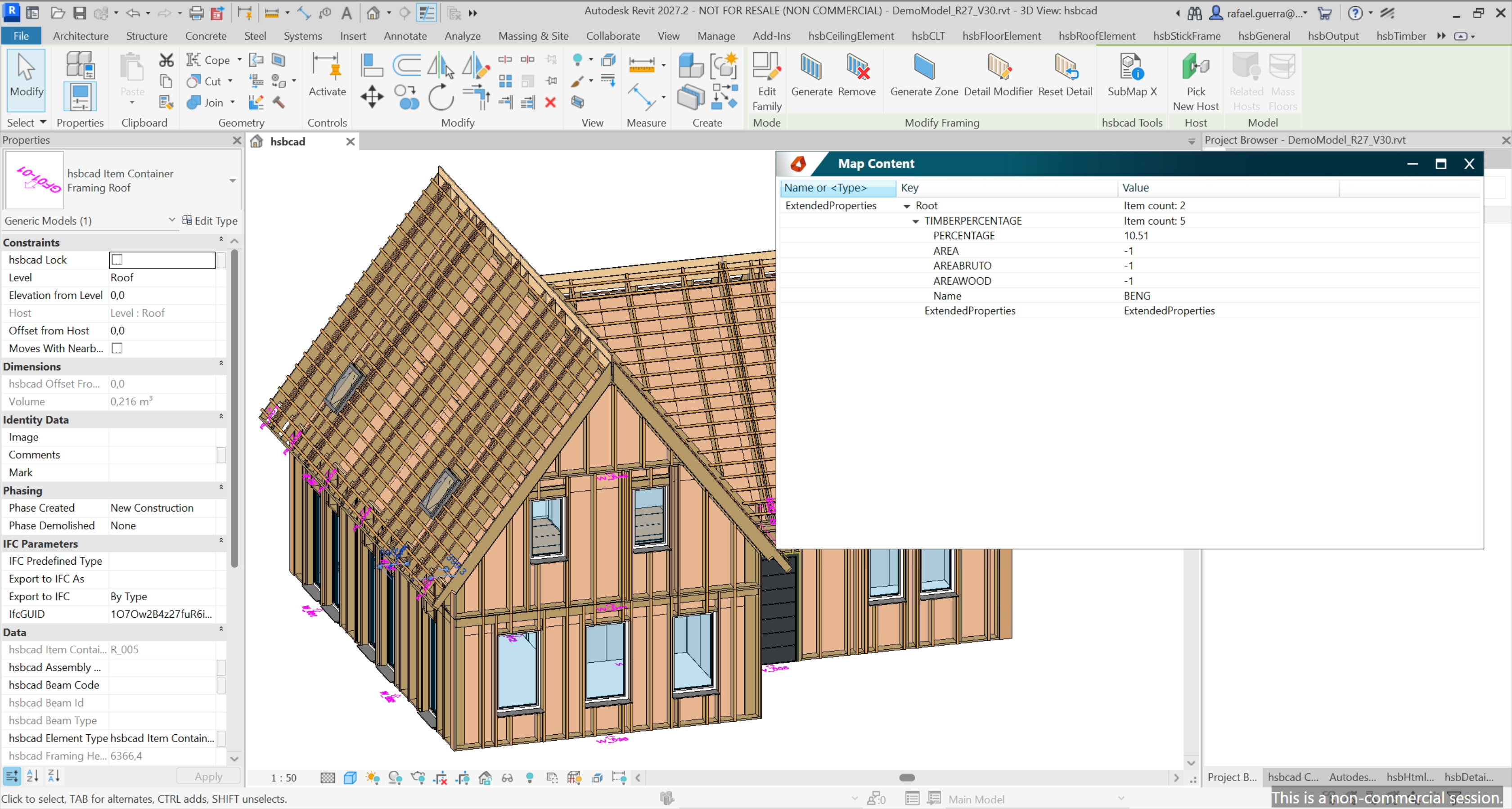
CAD data now survives the round trip into Revit and back. A data pipeline preserves each element's identity, keeps CAD metadata visible inside Revit, and on re-import applies only the changes. So connections and parameter mappings hold together instead of breaking.
Merge Framing Styles, Connections & Opening Details Across ACA and Revit
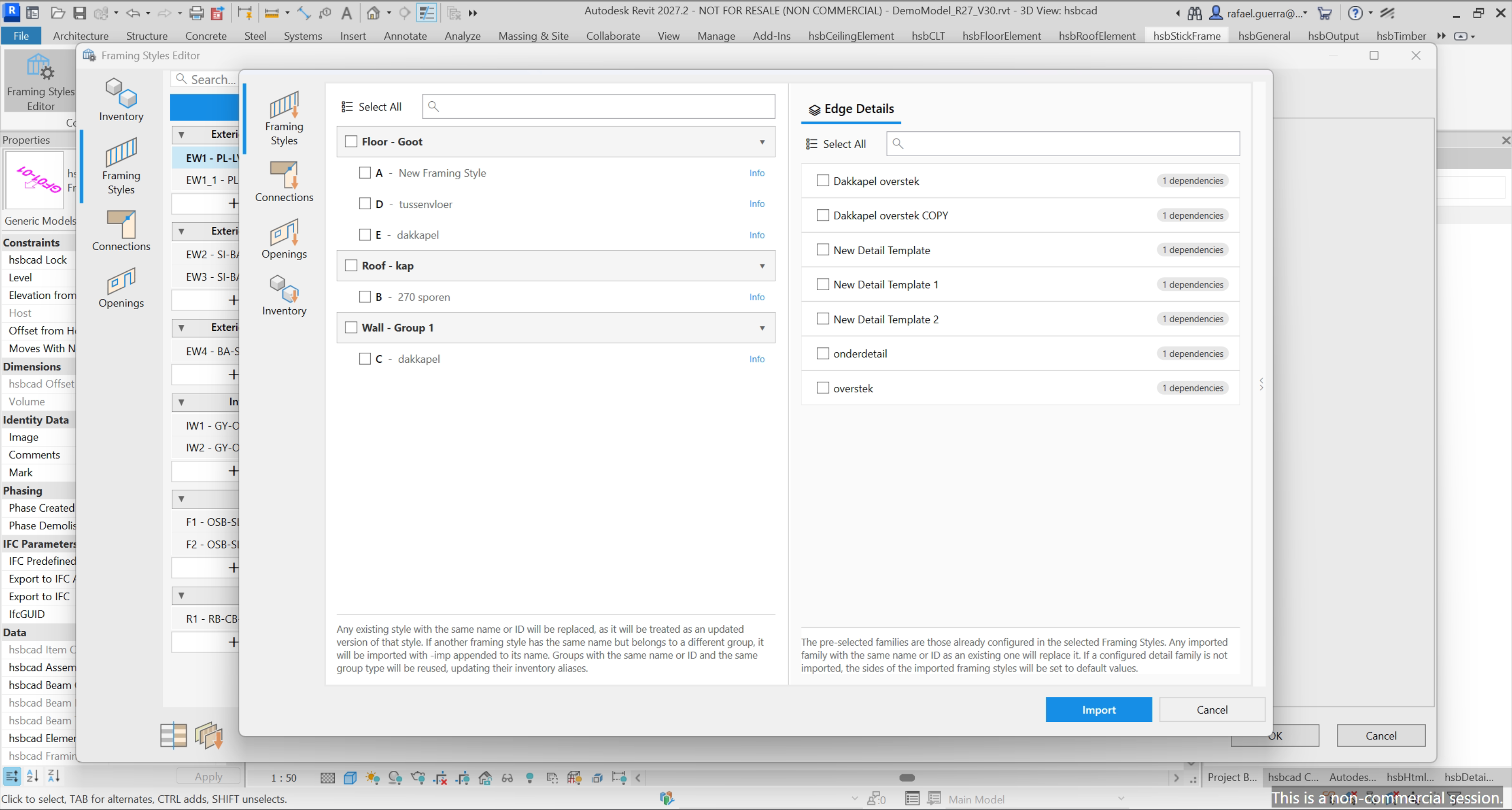
This brings the rules and configuration that drive the framing engine. Including framing styles, connections, and opening details into any document and merges them safely. Previously, a framing style's configuration could only be overridden as a single, all-or-nothing block. Now a complete framing project can be imported and merged, with name conflicts handled automatically and, in Revit, the required families imported alongside. Framing rulesets stay consistent and reusable across ACA and Revit.
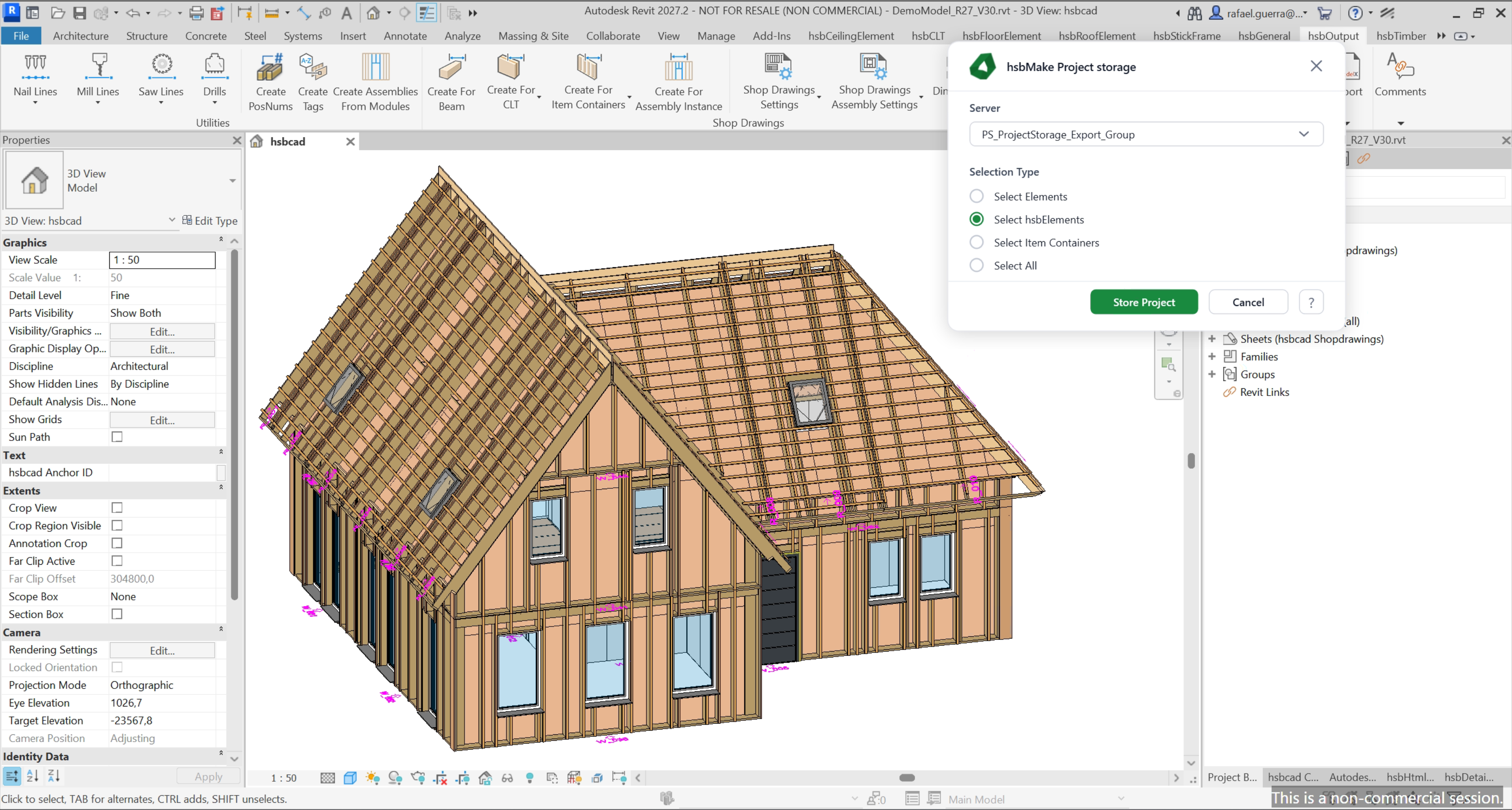
Project Storage from hsbDesign for Revit
Handing a Revit project to production no longer requires a full hsbMake Office installation. Projects can now be stored directly into hsbMake from within Revit through a guided dialog, without consuming an extra license, keeping the design-to-production handover light and easy to scale across teams.
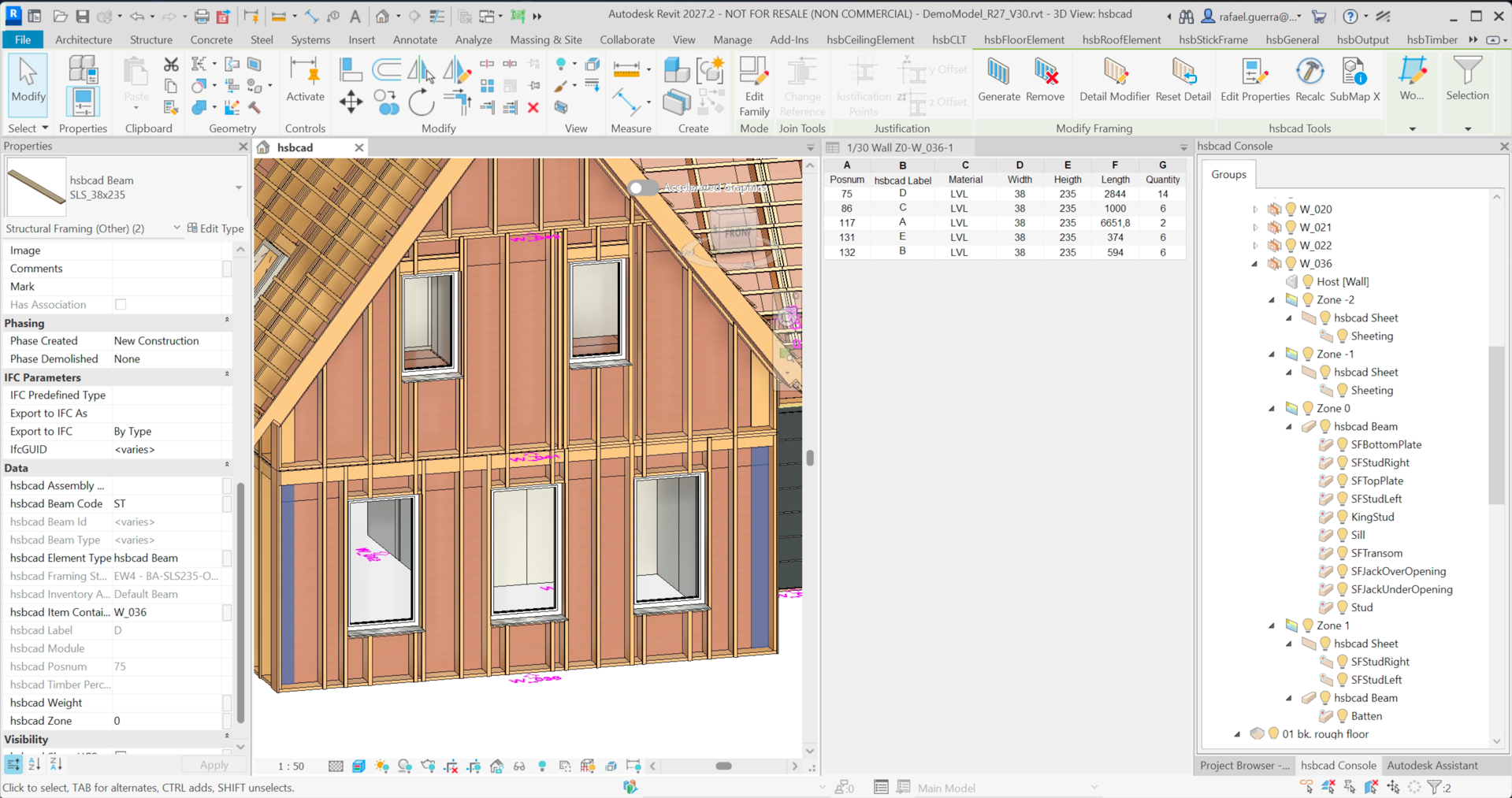
Production Drawing Tags
On large, complex panels, elements that share the same PosNum or BeamCode can now be told apart at a glance. Each element automatically receives a short alphabetical tag based on its position in the panel, shown in both the shop drawing schedules and the exported label. Loose items are excluded, so the tag sequence stays clean.
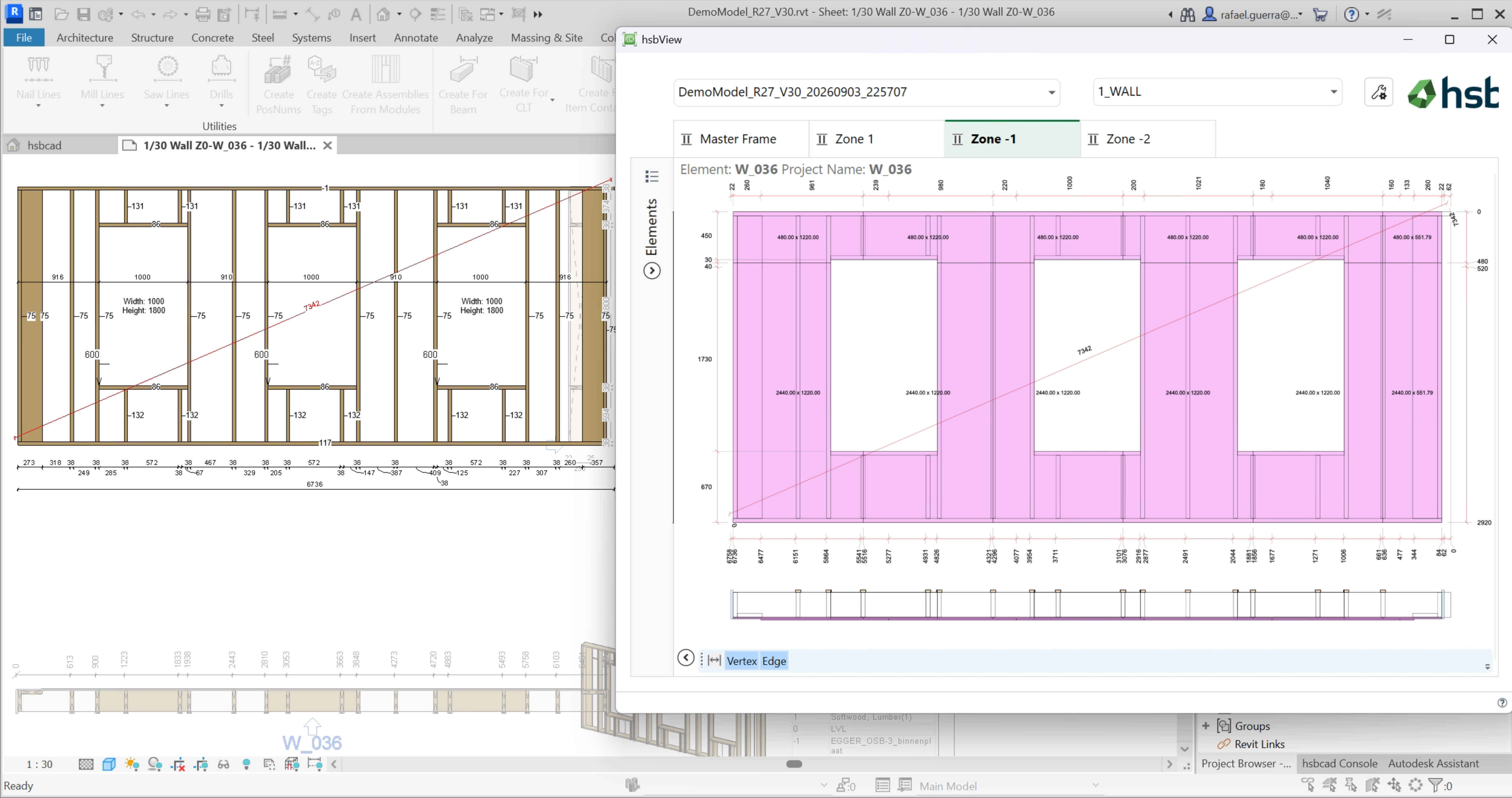
Export Fixed Dimension Line to hsbView and hsbMake
Reference measurements and controlling dimensions added by a designer in Revit now travel with the model all the way to hsbView and hsbMake, so production has them on hand without re-entering them or calling back to the designer.
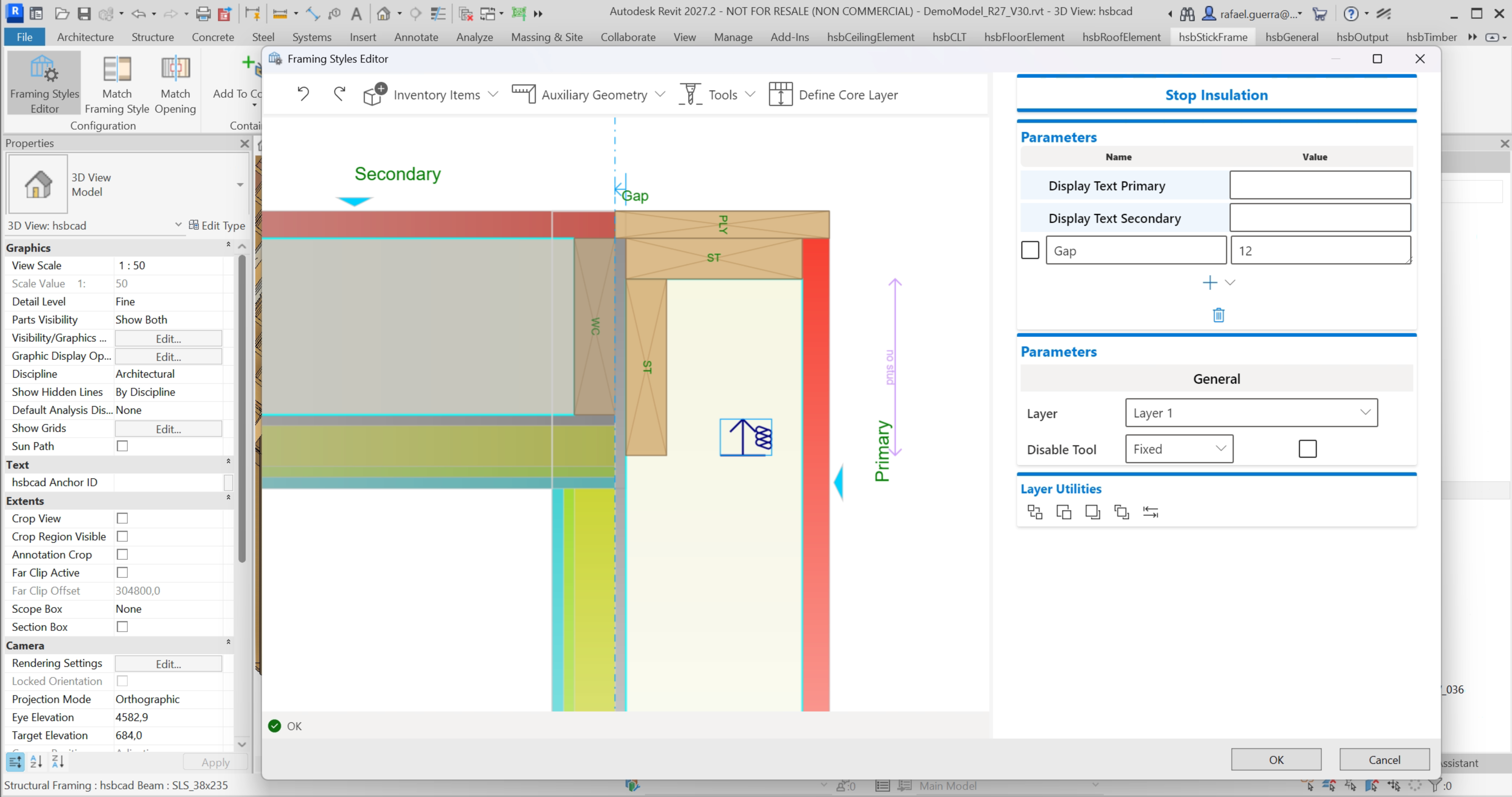
Stop Insulation Tool
Time spent manually clearing small pieces of unwanted insulation is now a thing of the past. No-insulation zones can be defined within edge, opening, and connection details, and the system automatically keeps those areas clear, the same way the familiar no-stud-area tool already does.
Frame by Zone (Preview)
This is an early, ongoing development capability. It's available to try now, but expect changes before it's finalized.
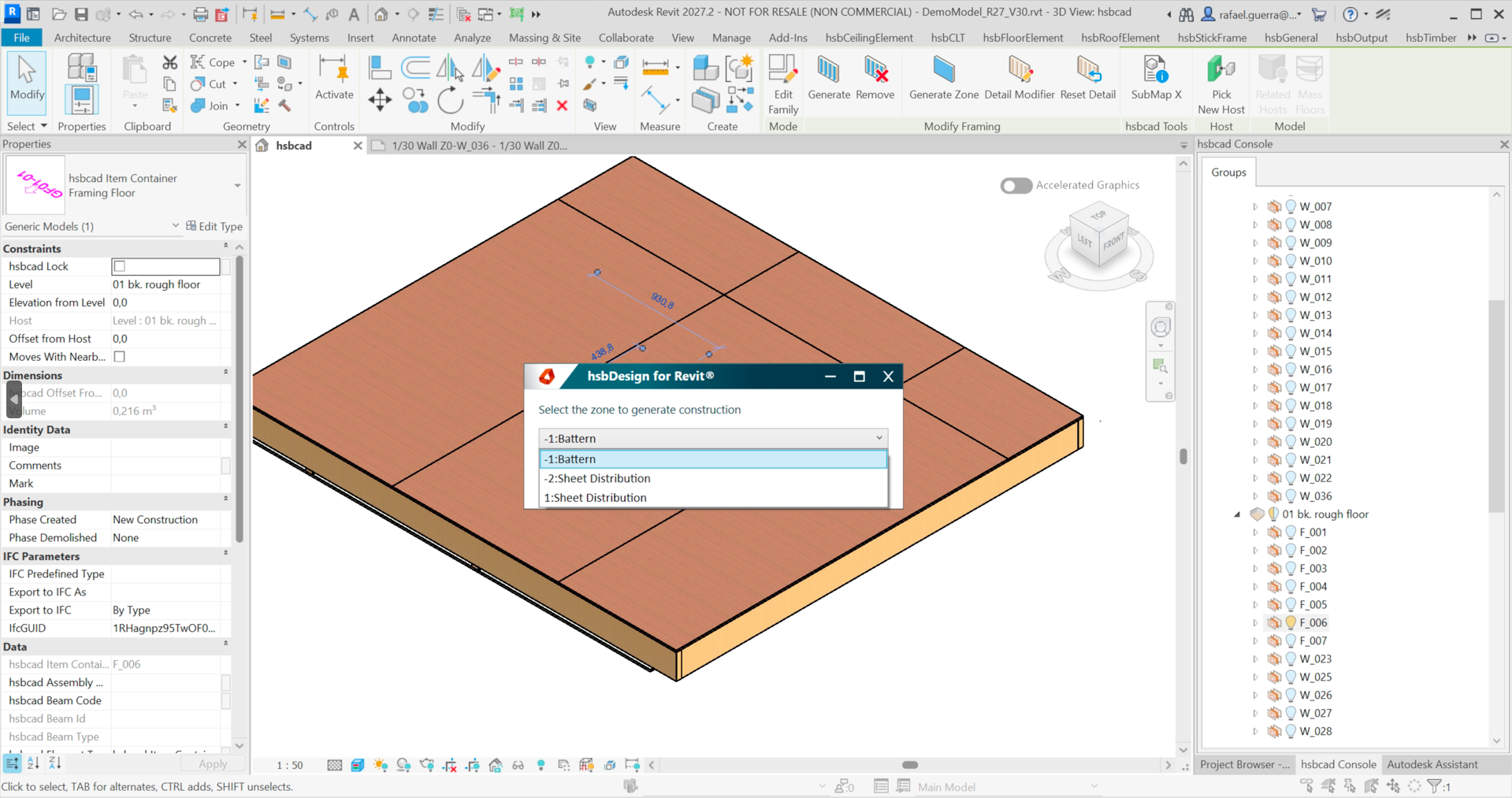
You can now fine-tune the framing of a single zone without forcing a re-frame of the whole element. Zone 1 and zone -1 can each be reframed on their own, while zone 0 (the structural layer) stays untouched. Reframed zones keep their configured relationship to zone 0, so all layers stay consistent.
hsbView in hsbDesign for Revit
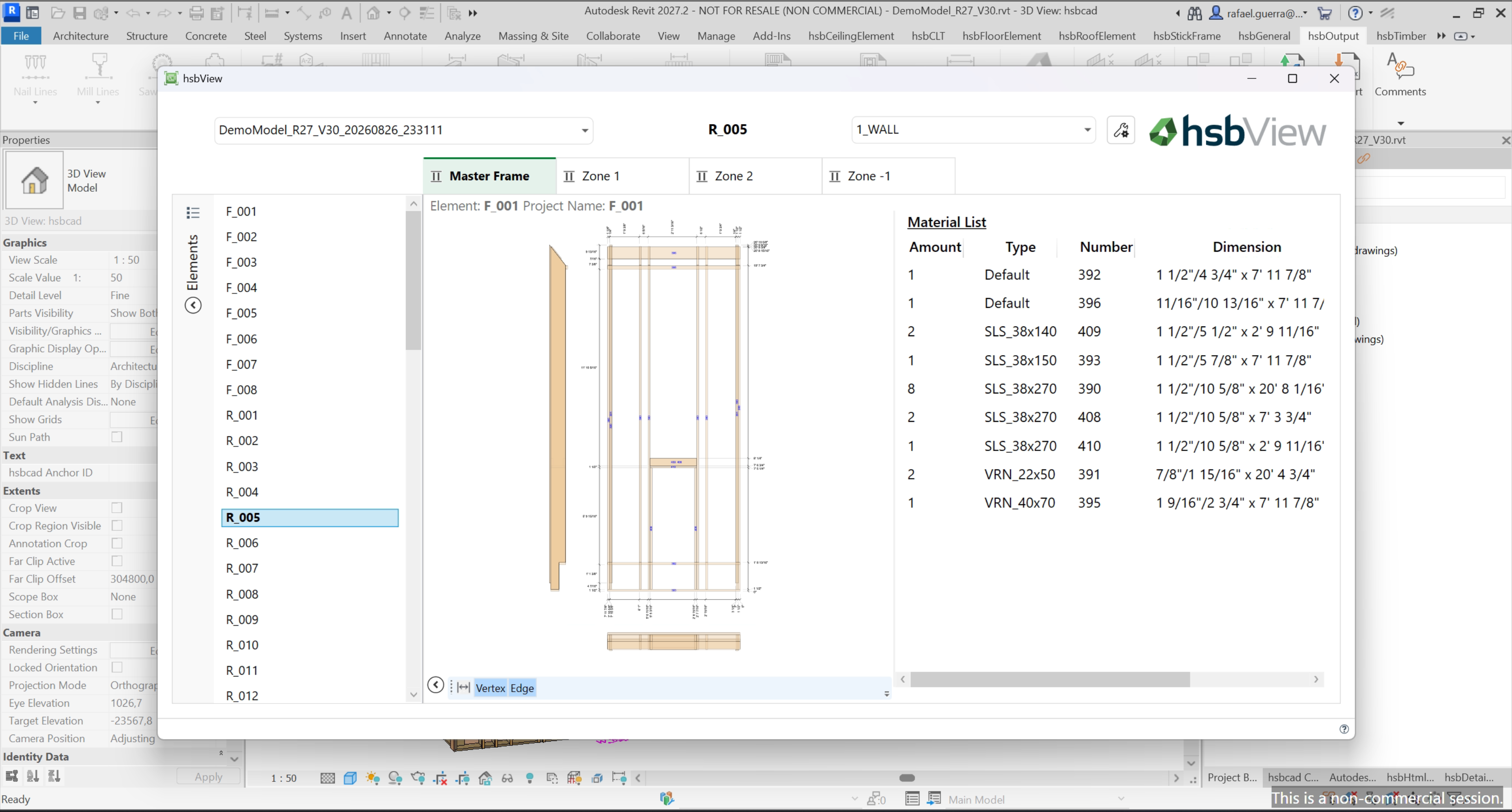
Reviewing a project no longer means falling back on the older Shop Drawing Explorer and PCC files. A new ribbon command opens the current project directly in hsbView from within Revit, using the same selection options you already know.
Detail Numbers (based on DSP)
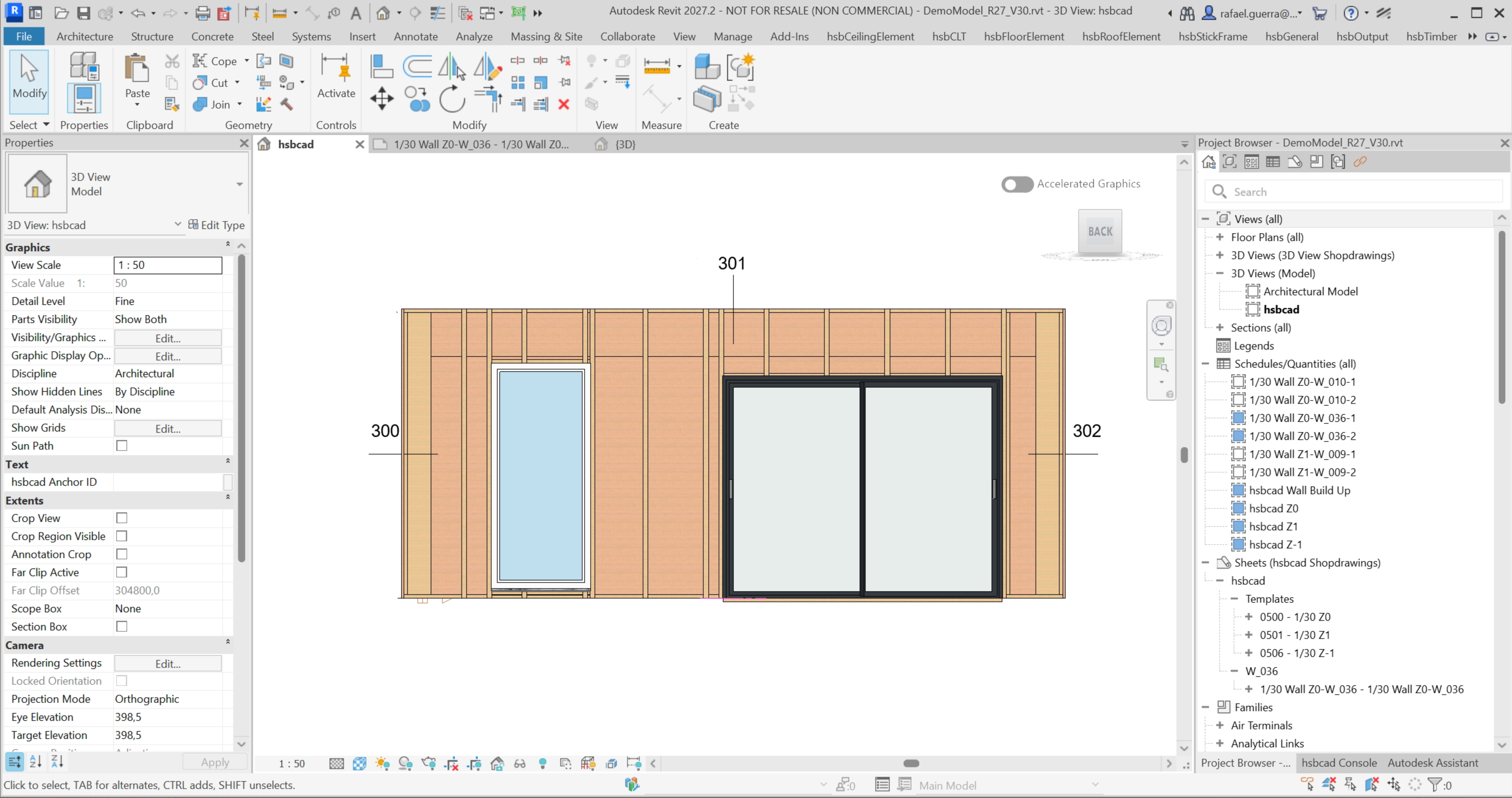
Detail numbers are now placed automatically and consistently, in line with project standards, closing the gap with ACA and removing the manual placement that used to cause inconsistencies. Detail numbers can also be assigned directly through the Framing Style Editor.
Automatic Blocking/ Timber Cleat (Klos) Next to a Stud (Preview)
This is an early, ongoing development capability. It's available to try now, but expect changes before it's finalized.
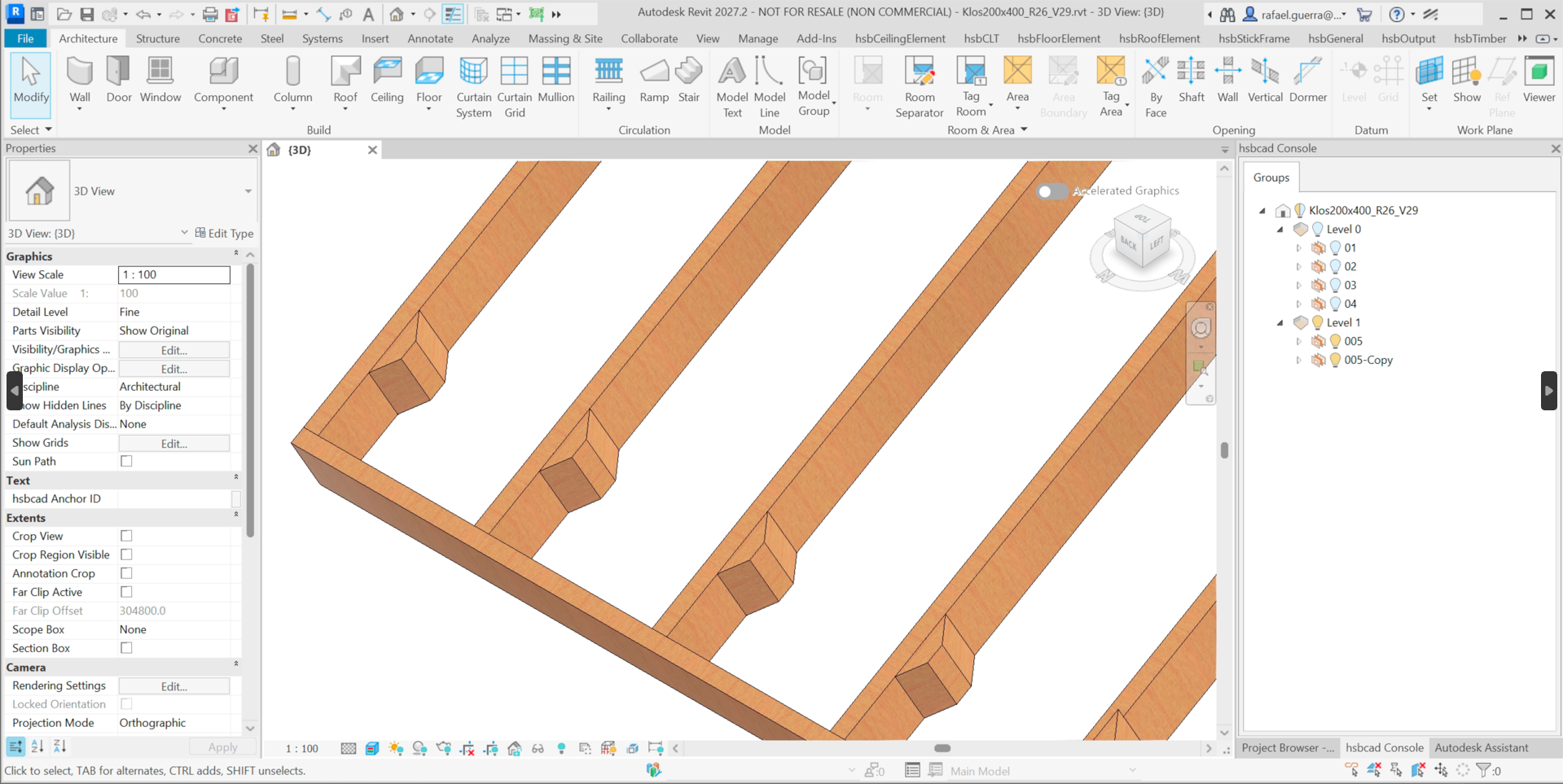
Placing blocking (klos) next to a stud is now handled automatically by a dedicated tool instead of by hand, adding blocking wherever it's needed.