
Sprung zum Abschnitt


Sie können die gesuchte Antwort nicht finden? Keine Sorge, wir sind hier, um zu helfen!
Kontakt zum SupportTSL | hsbEntityTag

This document will explain how to use the hsbEntityTag tsl.
1. Open the ''hsbEntityTag'' tsl
This can be accessed through the Ribbon.
Place image and rewrite
- Location: This tsl is saved in your C:\Program Files\hsbcad\<hsbcad20...>\Content\General\TSL
2. Dialogue Box Settings
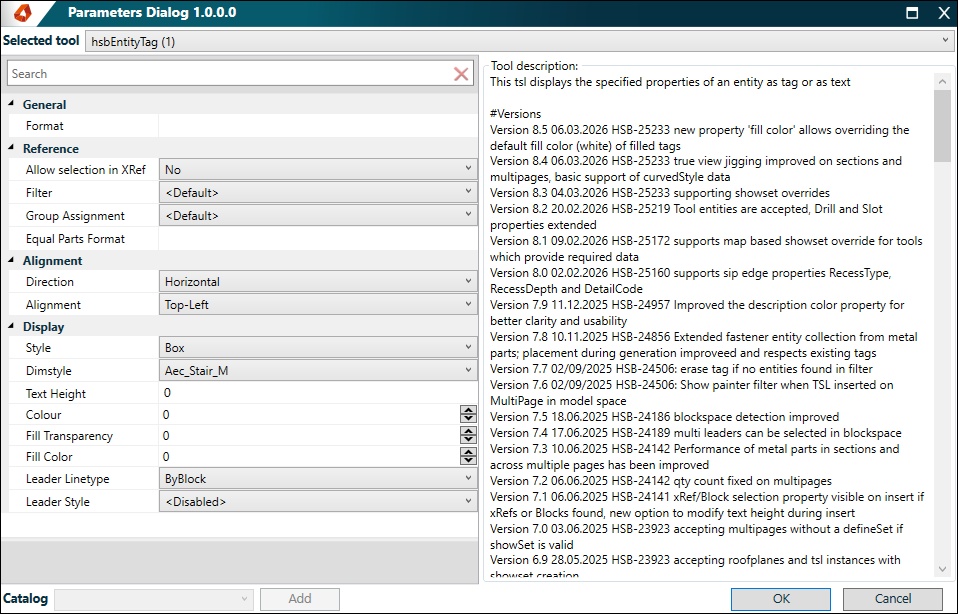
General
- Format
Users can define the information displayed on the tag by clicking the three dots, (I can't find the dots !!!!) which opens the Format Editor dialog box???
Within the Format field, begin typing @( to bring up a list of properties associated with the hanger.
Selecting a property will display its corresponding value in the Result field, allowing users to preview the information that will appear on the tag.
References
- Filter
Not sure - Group Assignment
Not sure - Equal Parts Format
Not sure
Alignment
- Direction
This allows users to set the direction of the tag display - Alignment
This describes where the user would like to have grip point for the tag
Display
- Style
User can specify the type of tag to display. Currently there are 3 types; Text, Box and Triangle. - Dimstyle
Allows users to choose the style of the tag they want to display. - Text Height
Allows users to control the size of the tag.
Colour
By selecting the Allow users to control the transparency of the tag. - Fill Transparency
Allow users to control the transparency of the tag. - Leader Line type
Users have the ability to define the line type they would like for the leader of the tag. - Leader Style
Users have the ability to set the style of the leader
3. Selecting hangers
After the settings have been confirmed – it will prompt the user to select a hanger where it will require the tag. The tag will then appear.
Display Generic Hanger and hsbEntityTag In hsbMake Client
Depending on how tags are displayed in ACA, the settings selected in the client would differ slightly depending on the display method in ACA.
Both ways will be outlined here.
Display GenericHanger TSL
The steps above outline how to ensure that GenericHanger are displayed within hsbMake Client.
If a tag has been assigned in ACA through the same tsl, it should also appear alongside it.
1. Go into Client settings within the client application, the Client Application Settings dialog box will open.


2. The on the left hand side, select ‘Tsl Instances’
3. Then create a new property, assigning the relevant name.
4. Navigate into the ‘Criteria’ tab and write the name of the TSL. In this context, it should be ‘GenericHanger’.
5. Once the settings are confirmed, the hanger should appear, and if a tag was set, this should also appear.

Display hsbEntityTag
This section describes how to enable the tsl to be displayed in hsbMake clients.
it will be a similar process to displaying GenericHanger.
The following fields would need to be copied and filled.
Insert a picture
After it is confirmed, the tag will appear, as shown below.
Insert a picture