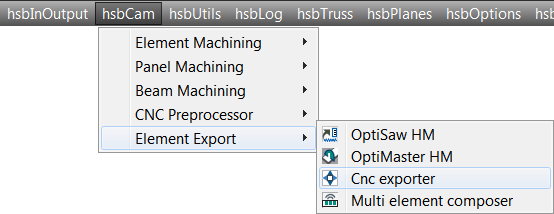
The hsbcad Exporter is used to sends an hsbcad model to the hsbcad export manager.
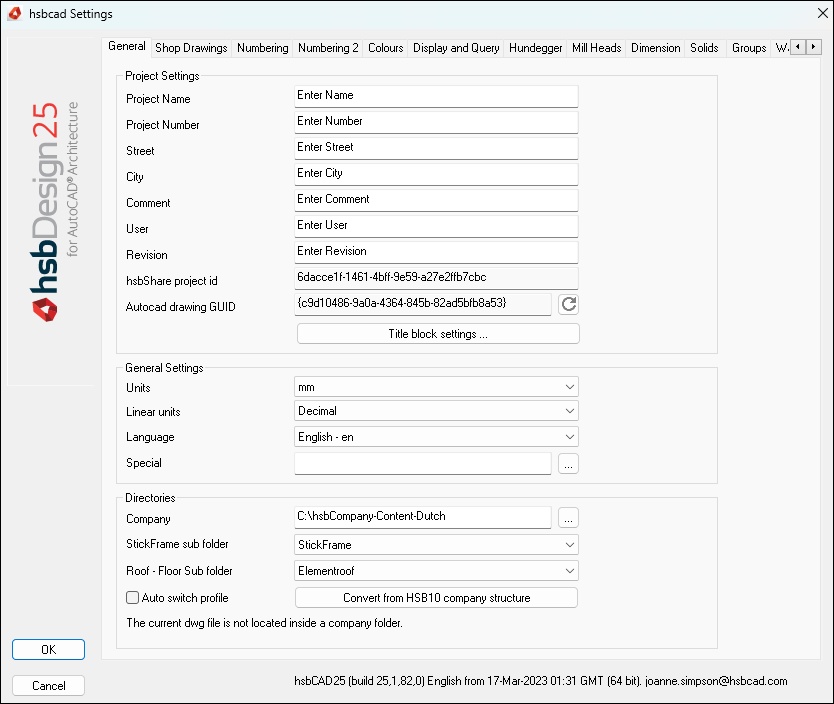
This document will show you the different options in the Settings.
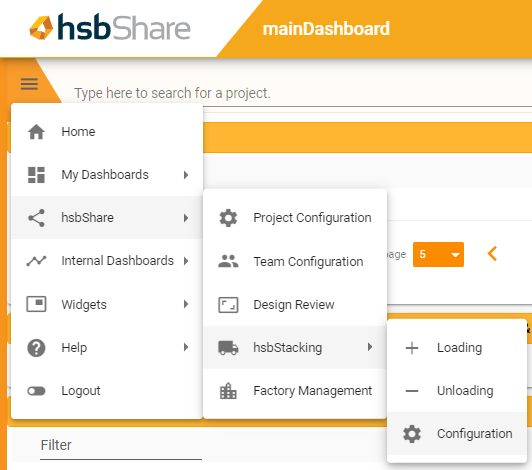
This document will show you how to use the hsbStacking in hsbShare.
This document will show you how to change the Dimension style within your Shop Drawing.
This document will show you how to take a hsbDesign model made in hsbDesign22 / hsbDesign23 / hsbDesign24 / hsbDesign25 or hsbDesign26 and open it in a non hsbDesign Acad environment.
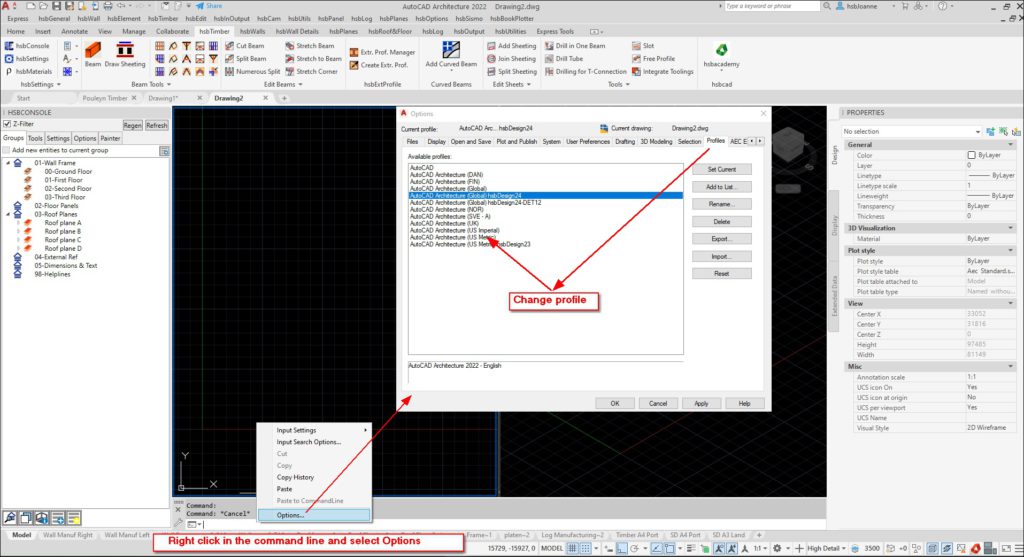
In diesem Dokument erfahren Sie, wie Sie das AutoCAD® Architecture-Profil ändern.
This document will show you how to update your tsl's in a drawing.
The function of this document is to provide information on how to create Layouts for the use of creating manufacturing drawings and setting up viewports.
Dieses Dokument zeigt Ihnen, wie Sie mit unserem Detail-Editor arbeiten können. Der Editor kann über den Element Editor geöffnet werden.
In diesem Artikel erfahren Sie, wie Sie Hebemittel in Ihr Projekt einfügen.
This document will show you how to find your hardware on you computer.
This document will show you how to change the hsbcad logo into your own Company logo in the PDF and Excel reports.
This document will show you how to add the Extrusion profile option in the WallDetail Builder.
You can input data like Project Name, Project Number, Street, City, etc. These data are for the better identification of the project.
In diesem Artikel erfahren Sie, wie sie das Werkzeug zur Schwerpunktsermittlung verwenden.
In diesem Dokument werden die verschiedenen Funktionen des hsbWand Menüs in Autodesk Revit erklärt. Auf diese Weise erhalten Sie eine Vorstellung davon, wie Sie Ihr Revit-Modell mit den Funktionen von hsbDesign erweitern können.
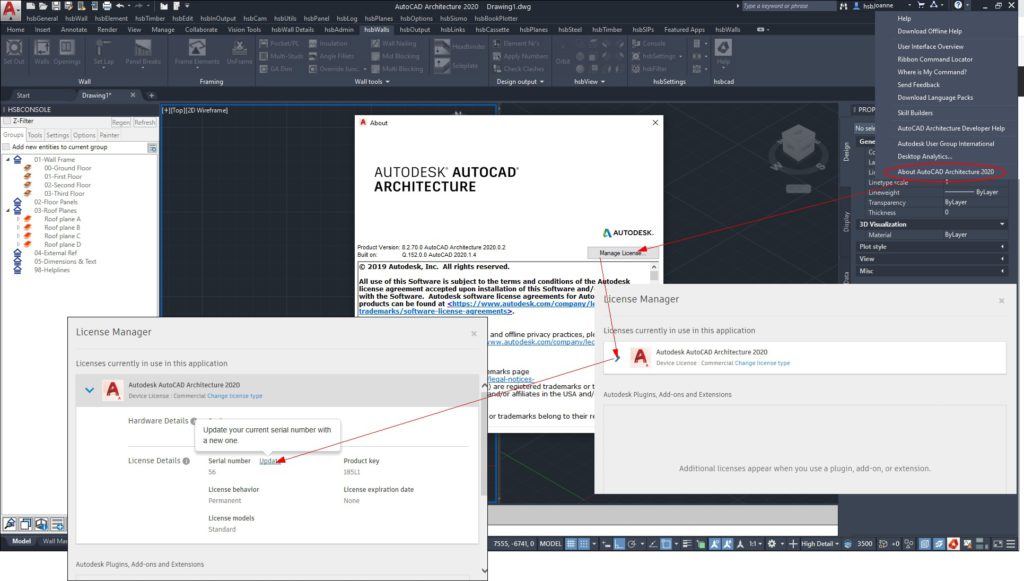
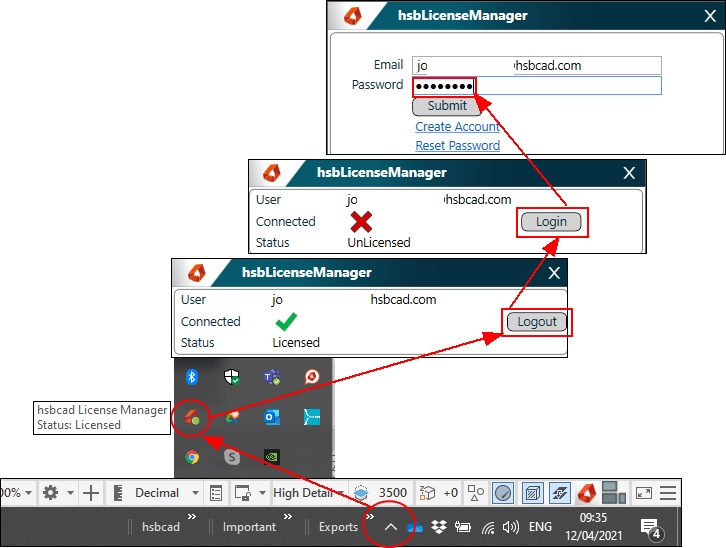
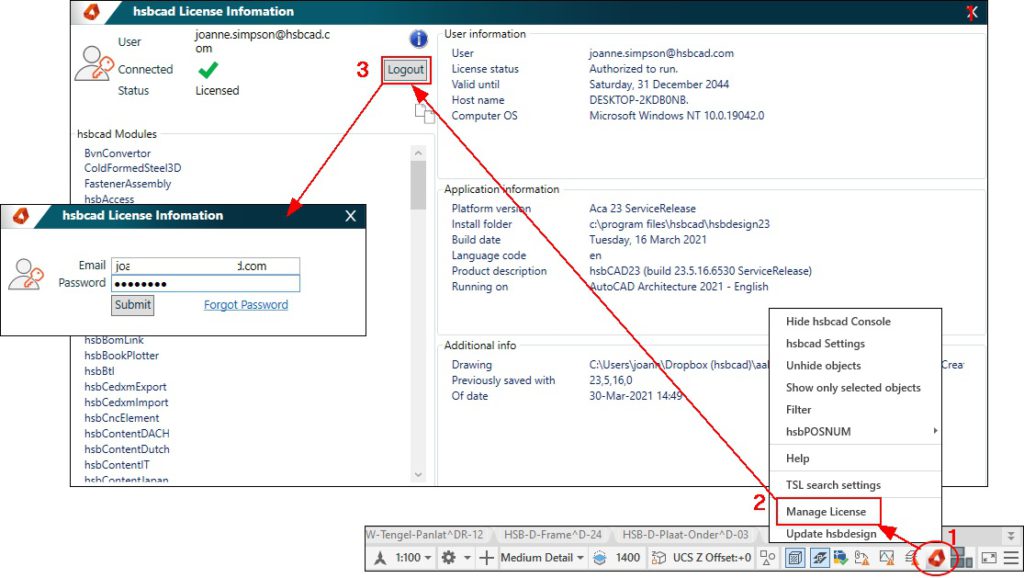
Loging in and out using the License Manager option in the bottom right corner of your screen.
Open your hsbdesign and select the hsbcad Icon in the bottom right corner. Select the Manage License option.
In diesem Artikel erfahren Sie, wie Sie Aussteifungsstäbe in ihre Konstruktion einfügen.
This article will give you information on how to export to BTL. Before you start exporting don’t forget to number all your entities.
This document will show you how to take an hsbCad model (2017) and open it in a non hsbCad Acad environment.
Dieses Dokument zeigt Ihnen, wie Sie nach Excel exportieren. Das Modul hsbExcel ermöglicht es Ihnen, Daten von hsbDesign nach Microsoft Excel zu exportieren.
The hsb_E-Replicator tsl can be used to copy entities from 1 main element to multiple replica elements. When having this, the HSB_G-ReplicatorExport tsl can create a delivery and export a delivery by running the hsbExporter.
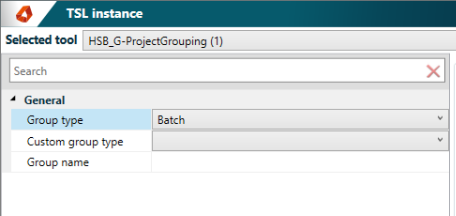
Batches and stacks can be used in hsbmake to segment a project.
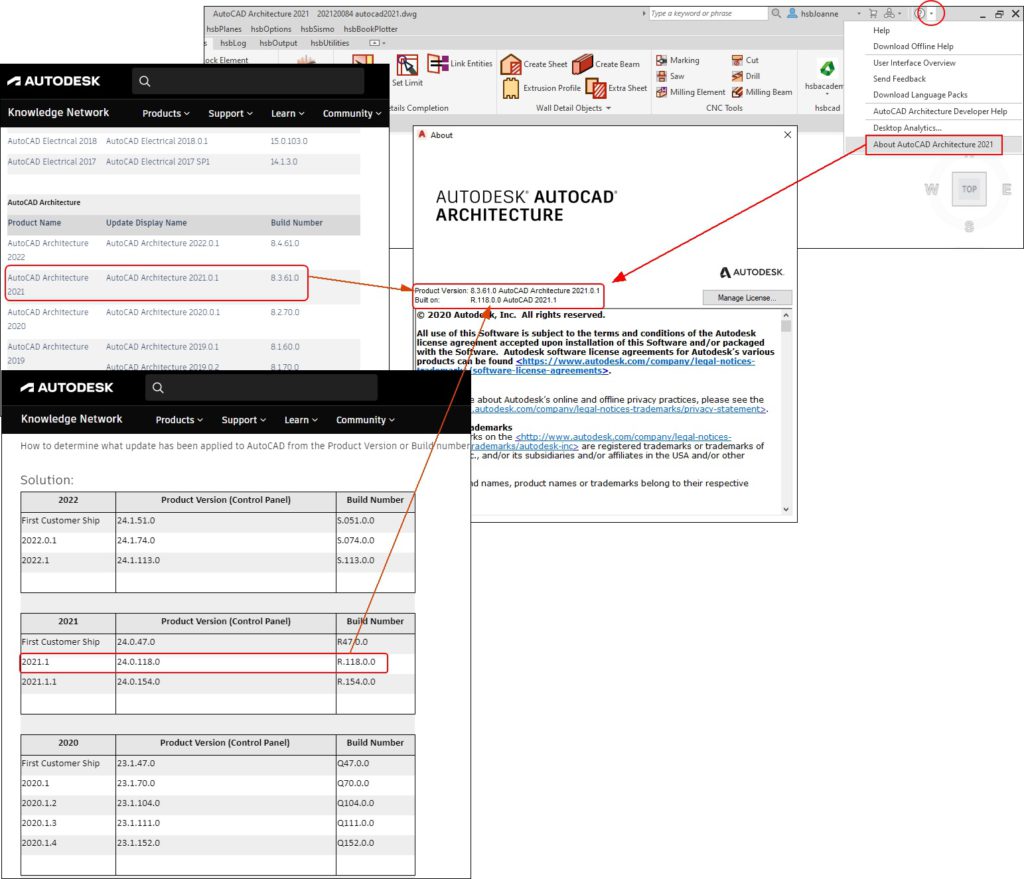
This document will show you where you can find the info if you have installed AutoCAD® Architecture Updates.
This tsl draws a section from the dsp details.
This TSL changes the side of a blocking.
This tsl sets the layer of the selected entities in elements. Sets layer '0' and assigns it to element group.
This tsl stores (modelmap) one or more elements. It opens the Exporter and exports it to one of the selected.
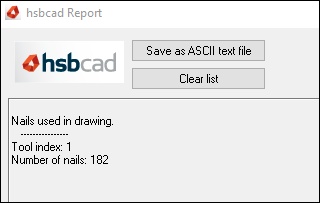
This tsl shows the amount of nails used.
This tsl adds details on a layout which can be specified throug hsb_E-DetailName or hsb-Production details (MS) visualization can be done as a block or as a view from the model.
This tsl moves beams to loose delivery groups.
This tsl optimizes genbeams.
This tsl splits the beams to a given length that belongs to an Element.
This tsl will number beams and sheets starting from a specific starting number. Uses/Abbund/position numberconfiguration.
This tsl adds marking to a set of beams.
This tsl has to be loaded in the Template or drawing where the hsb_G-InstallationTypeCatalogue tsl is used, it is used in the background. Through the hsb_G-InstallationTypeCatalogue tsl you build a catalog.
This tsl creates a catalogue for hsb_P-AssignInstallationType. This tsl will assign electrical symbols to an installation object.
This tsl adds extra information to the viewport for the specified objects in a layout.
This tsl places a hatch on specified beams in a viewport.
This tsl creates a dxf file with element information. First insert the tsl hsb_G-ElementInformation.
This tsl adds a table with the amount of wall types per wall type.
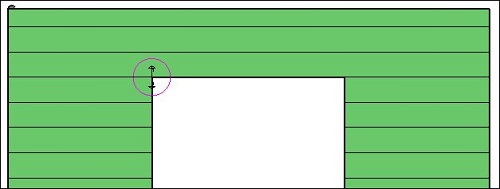
This is a combination tsl, the tsl makes use of the hsb_W-DistributeHorizontalSheeting. This tsl will set the sheeting to a certain height.
This tsl creates a elliptical arc.
This tsl shows element information in a specified display representation.
This tsl creates a dxf output for beams and sheets. Each beam, or sheet, is outputted as a polyline to a dxf file.
This tsl displays the number of the element.
This tsl calculates a distribution between two points. The distribution positions can be retrieved through MapIO.
This tsl creates and maintains deliveries.The information of those deliveries can be used on production drawings and as input for the database.
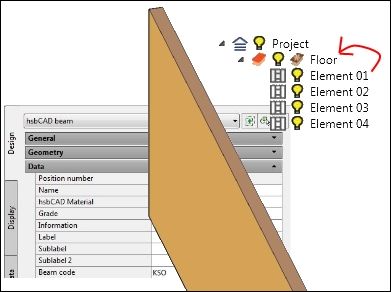
This tsl changes the thickness and material of the selected sheets.
This tsl is one of the main tsl's that is used to create a bill of material of a set of entities. Which entities and what properties of the the entities are shown can be controlled by the properties of the tsl.
This tsl has to be loaded in the Template or drawing where the hsb_G-ColorBeamsCatalogue tsl is used, it is used in the background.
This tsl creates a catalogue for hsb_E-ColorBeams.
The hsb_E-BeamToSheet is used to convert a beam to a sheet. This tsl uses a Catalogue.
This tsl applies numbering. Only works for beams and sheets which are attached to an element.
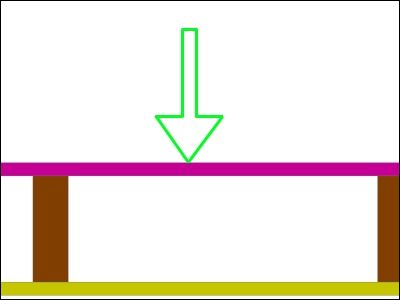
This tsl displays an arrow in a paper space viewport (Top and Side view).
This tsl can be used to run different exports which are defined in the exportmanager.
This tsl has to be loaded in the Template or drawing where the hsb_G-BeamToSheetCatalogue tsl is used in the background.
This tsl creates a catalogue for hsb_E-BeamToSheet.
This tsl exports to the dBase the corner type, junction types and all opening information.
This tsl creates beams front and back inside of a wall with a gap in between and a full piece of OSB arount the wall and the openings to close it.
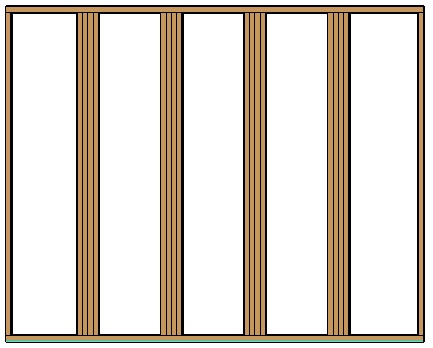
This tsl Creates multiple studs replacing the existing one, it will create them as a module.
This tsl creates a point, line or area with a specific load and stores that value, it will get export to View.
This tsl creates a Bill Of Materials in the Layout for Walls or Floors.
This tsl creates a reference line around the element, beams or floors.
This tsl creates a reference line for the foundation with some offsets from the walls.
This tsl draws the name of block that the master TSL set this one with.
This tsl sets the wall information to Square, Shaped or Special base on some rules.
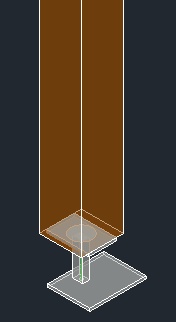
This tsl adds a Column Foot with Glued rods.
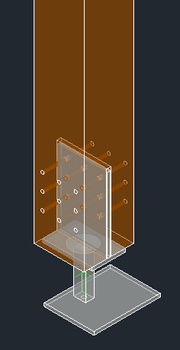
This tsl adds a Column Foot with Fin Plates.
This tsl is used to mill around openings.
This tsl creates a sheeting under the elements.
This tsl calls the exporter for a specific group with all the entities or only the selected ones.
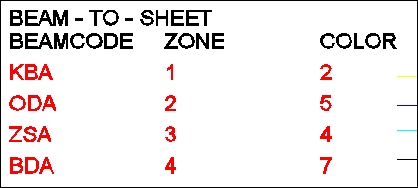
This tsl convert the beams with a beam code into sheets and assign it to a specific zone.
This tsl convert any beams that match section size to one of the profiles described in the properties.
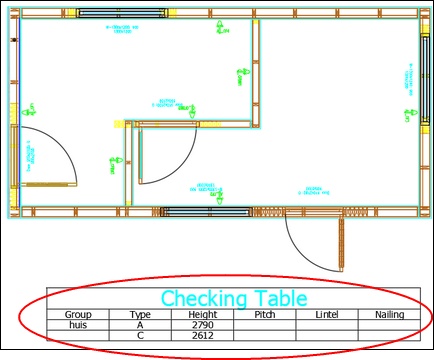
This tsl creates a table in modelspace with the wall group, wall code, wall height, pitch, nailing information and lintel information of the selected elements.
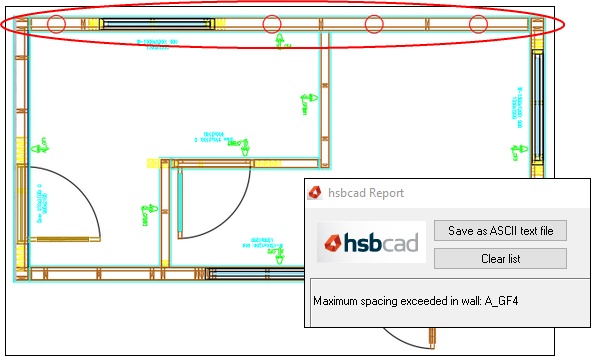
This tsl creates a stud or circle when centres between studs have been exceeded.
This tsl rip the left and right stud when the king stud is overlapping them or rip the king stud when it is outside of the wall outline.
This tsl cuts the angle plate that intersect the bottom plate and if necessary apply a blocking piece.
This tsl moves the left and right studs back to the location of the sheeting zone define by the material.
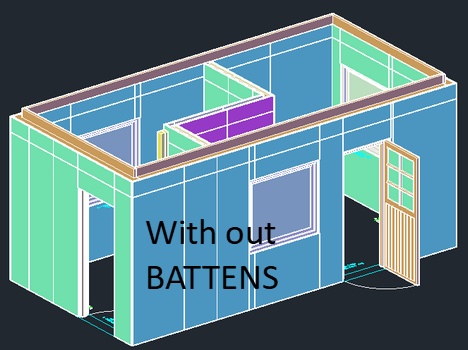
This tsl creates battens around openings with an option to exclude doors, this battens will be assign to a zone of the element.
This tsl Cuts in an angle the blocking that intersects the angled top plates leaving a clean connection.
This tsl calculatse the cavity closer base on the height of the openings or the width of the doors and export an Element with the information to the dBase.
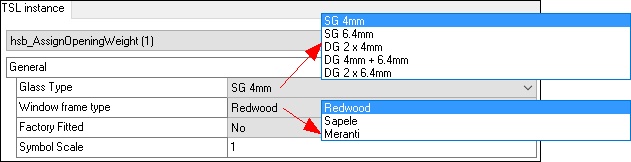
This tsl assigns the weight to the windows and doors, based on the type of glass and also the timber and their area.
This tsl converts a stud with code "BOXBLOCK" into 2 pieces of 200mm length on top and bottom of the panel.
This tsl Calls the Exporter for a specific group with all the entities or only the selected ones.
This tsl creates a small profile shopdraw with the dimensions of every beam that is not rectangular and quantify them.
This tsl create horizontal battens in openings, it will take in consideration if they are opening assemblies too if the TSL "hsb_SetModuleOnWindowDoorAssembly" is used prior to this one.
Settings for batten distribution construction plugin.
This tsl assigns a TSL none exclusively to the group of all the element selected.
This tsl assigns truss entity to element.
This tsl assigns sheets to a zone of an element.